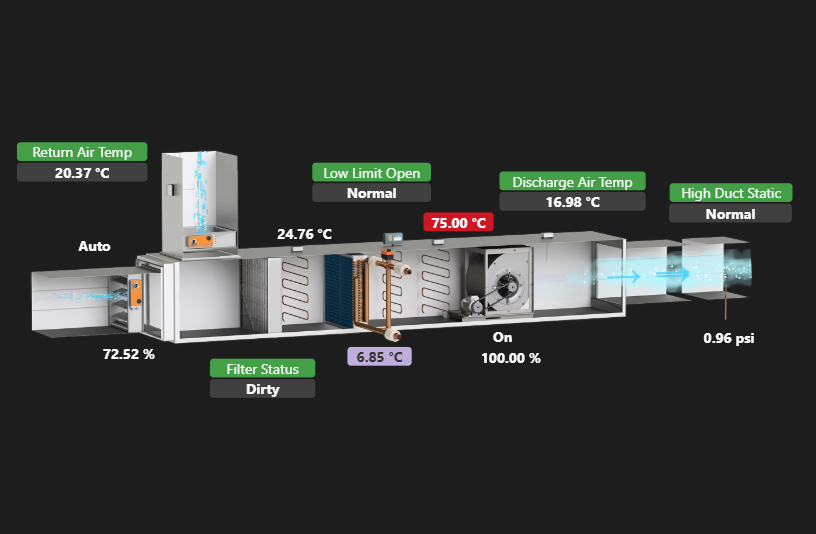
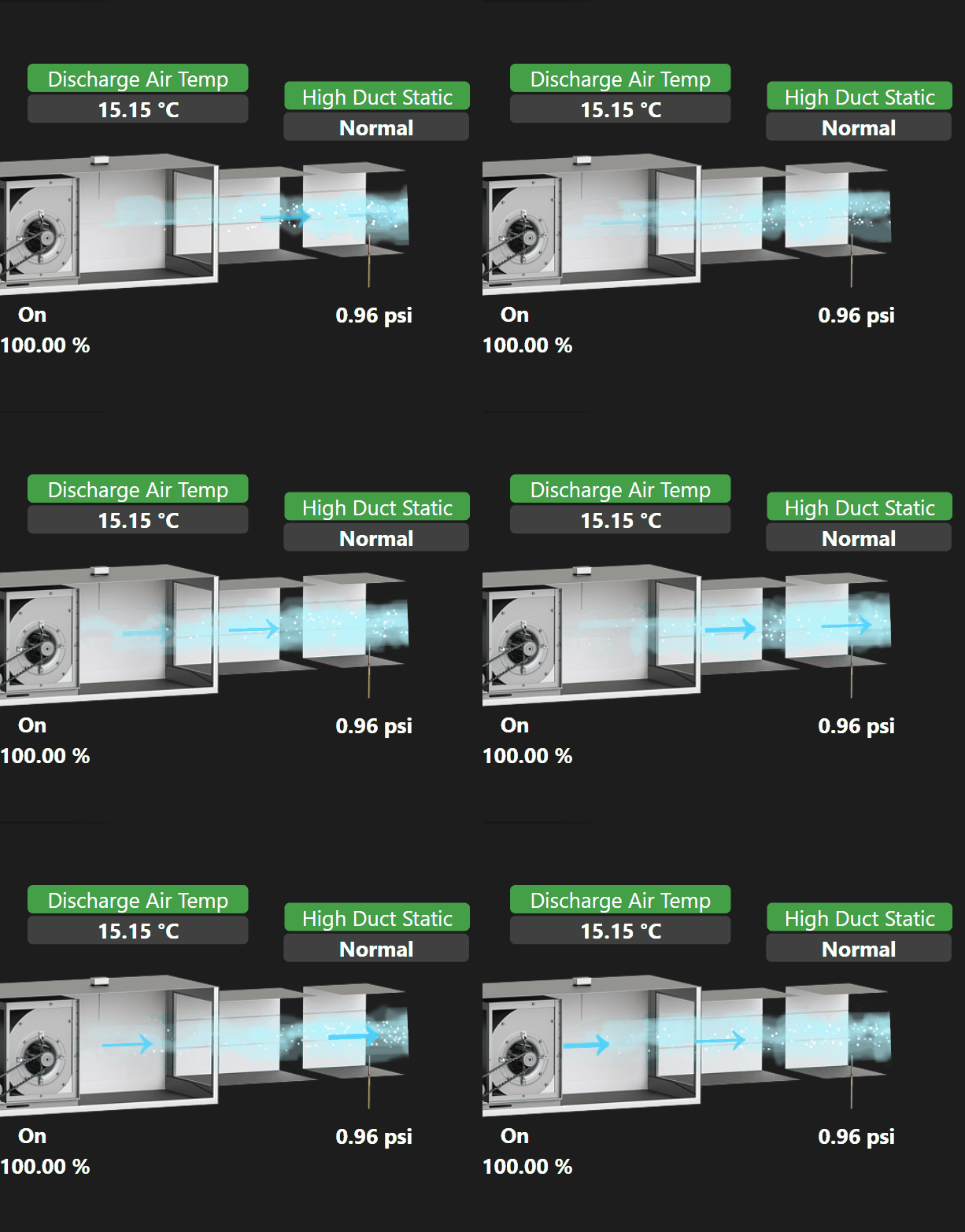
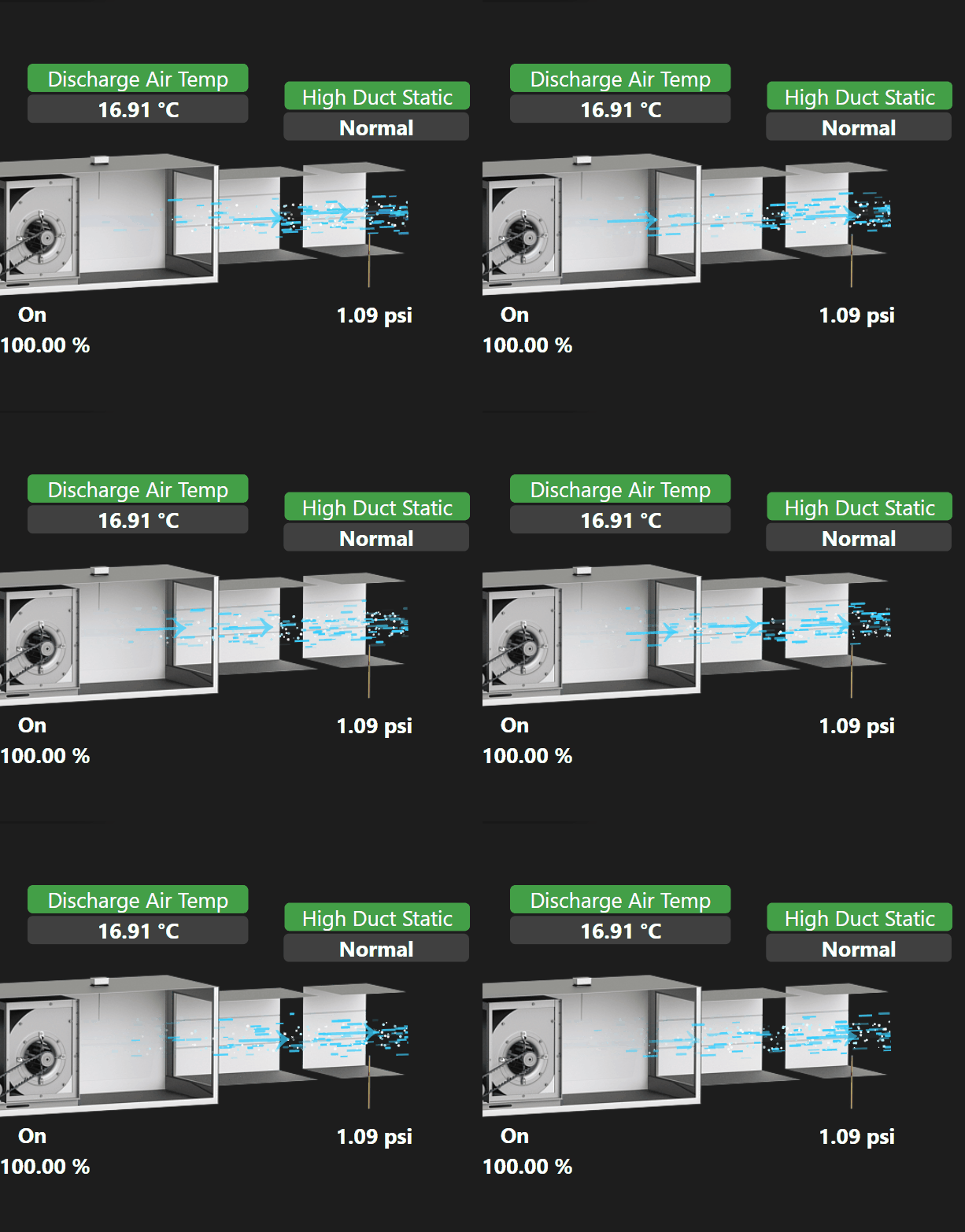
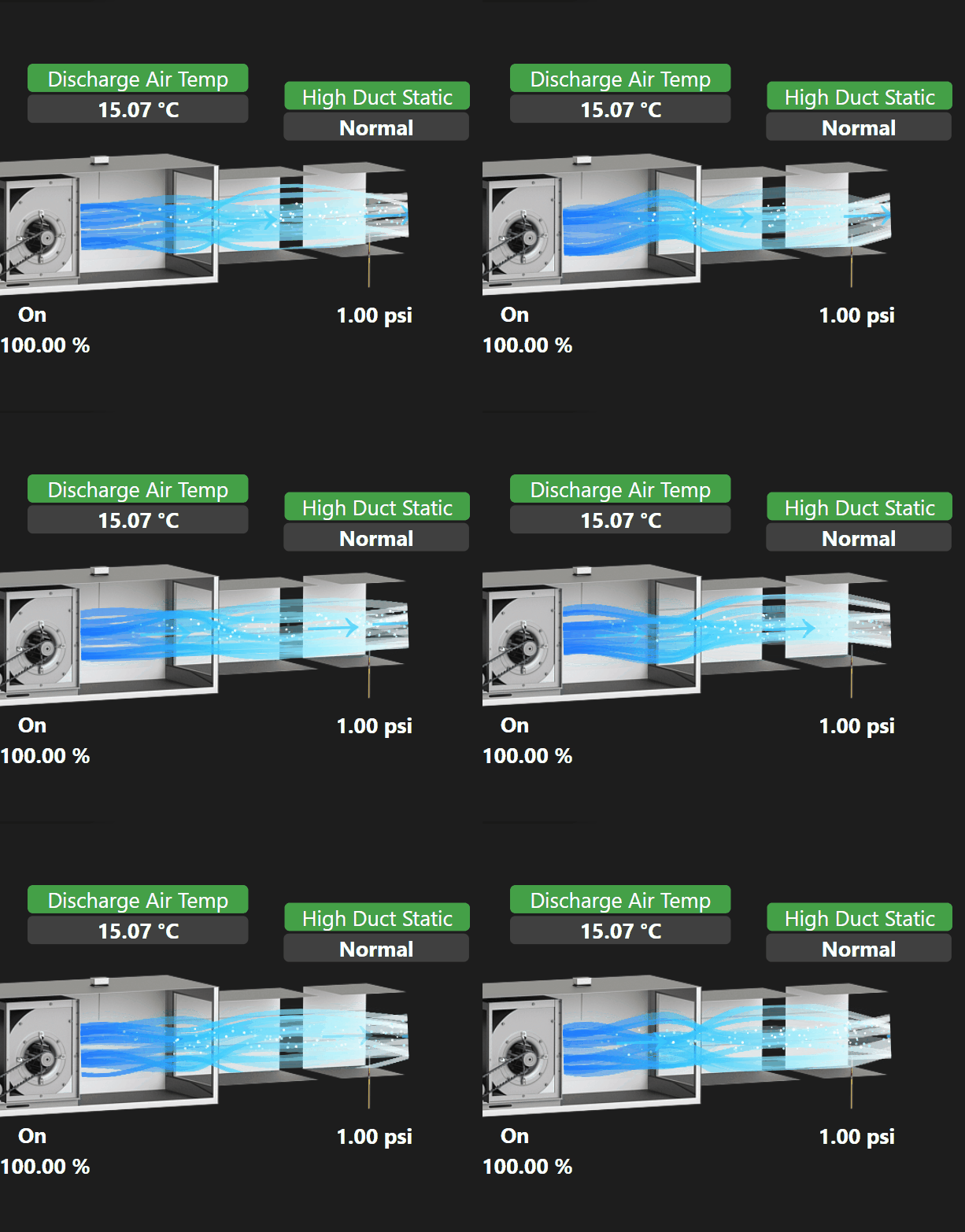
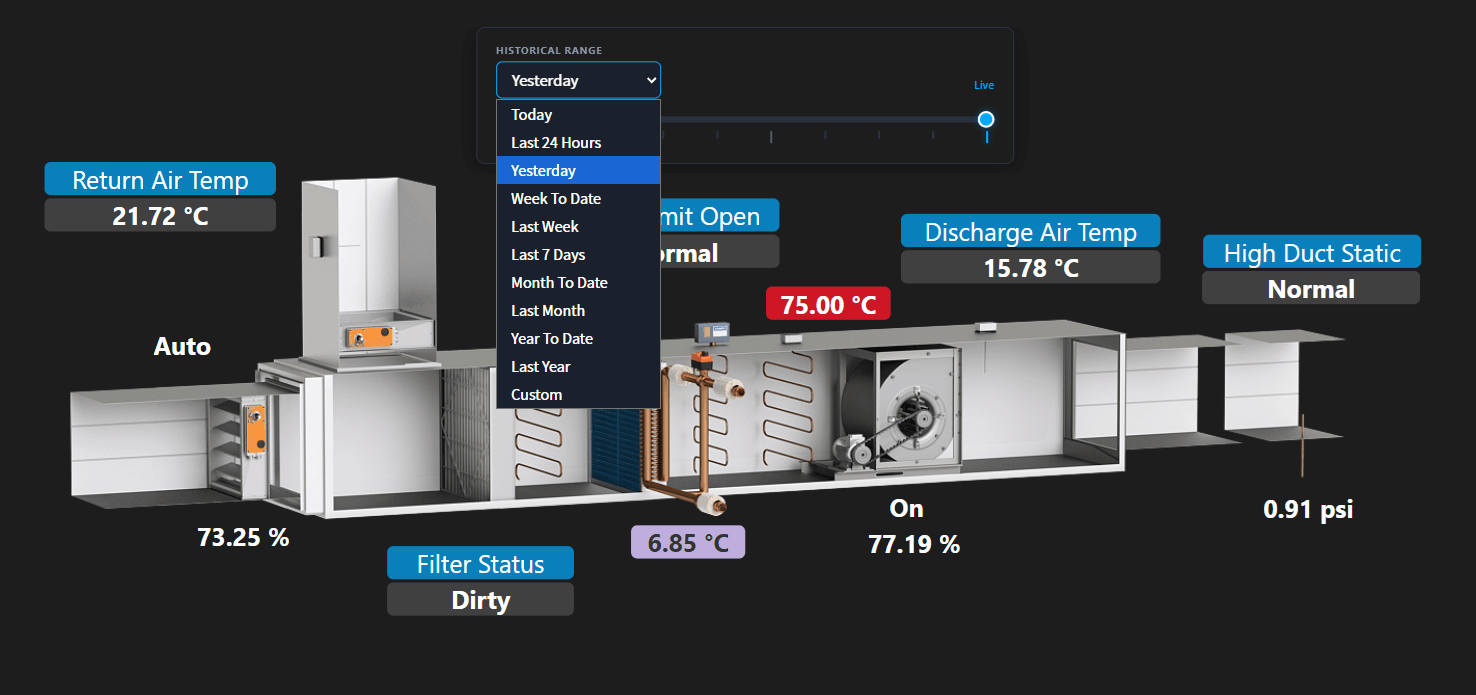
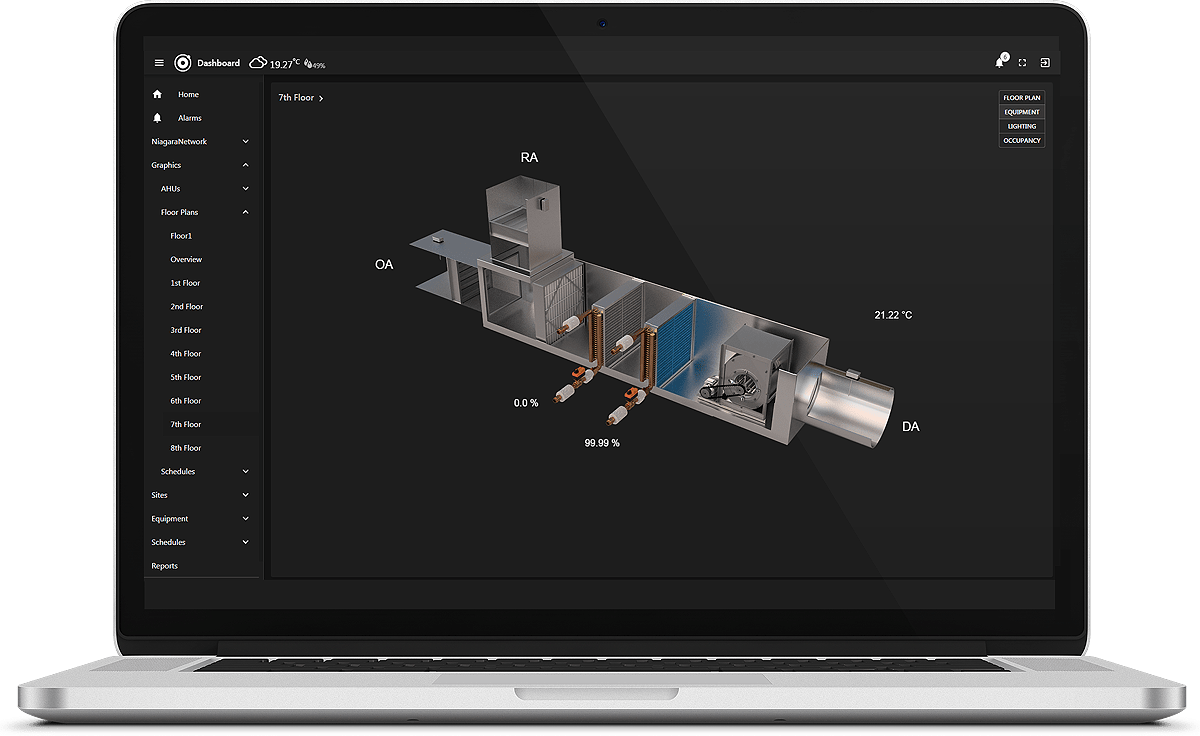
Airflow Animations for N4 Px Graphics
- Show Airflow
- Bind to Numeric Point
- 3 Styles
- Lightweight SVG
- Heating Mode
- Updates in real-time
Airflow Animations for N4 Px Graphics provides a quick visual indication of what equipment is doing and how air is moving through the system.
The animation is implemented as a lightweight SVG widget using JavaScript and SVG, allowing it to be dropped directly onto a Px page and bound to a numeric point/ORD. This avoids the need for a separate rendering engine while still providing dynamic, animated airflow graphics.
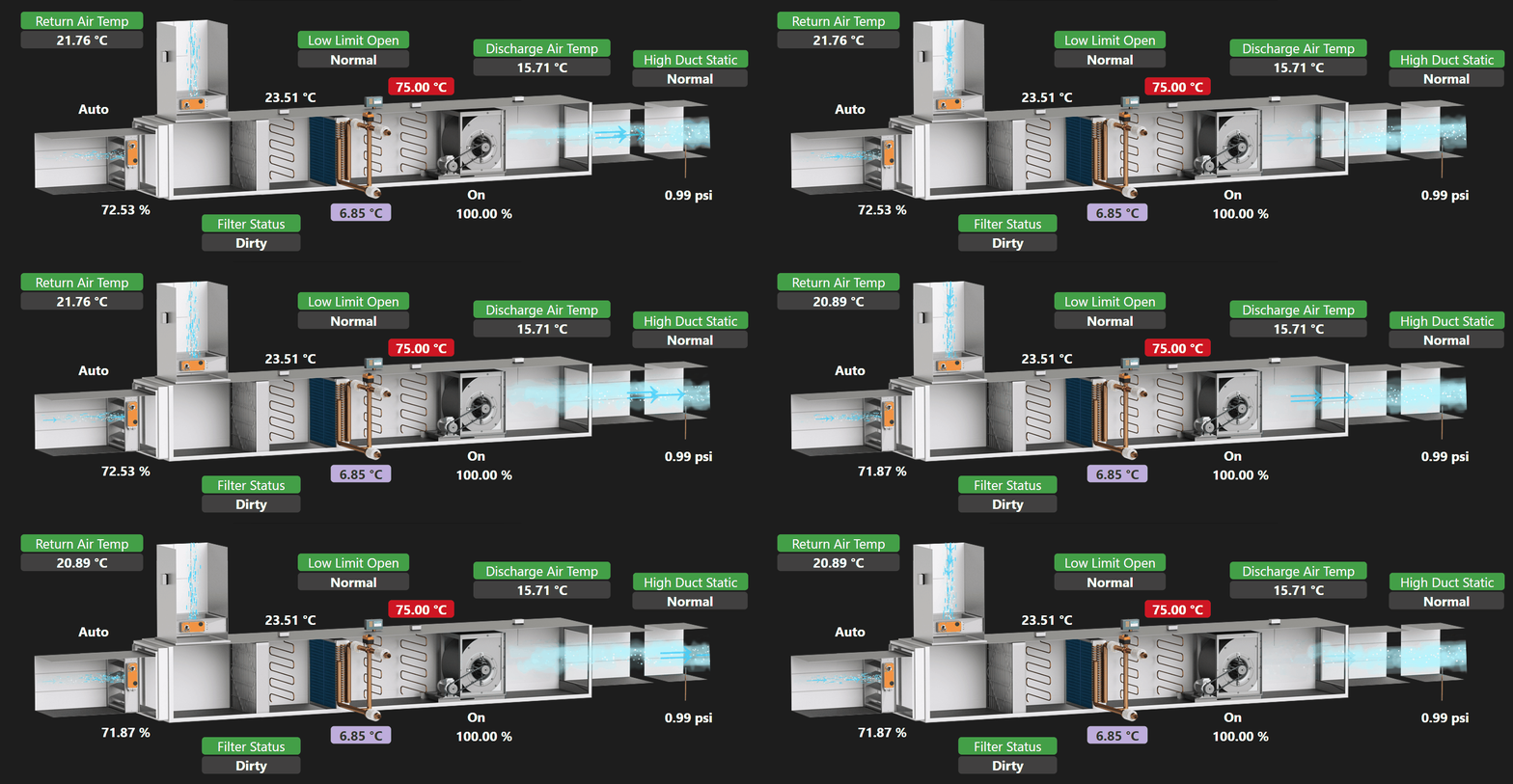
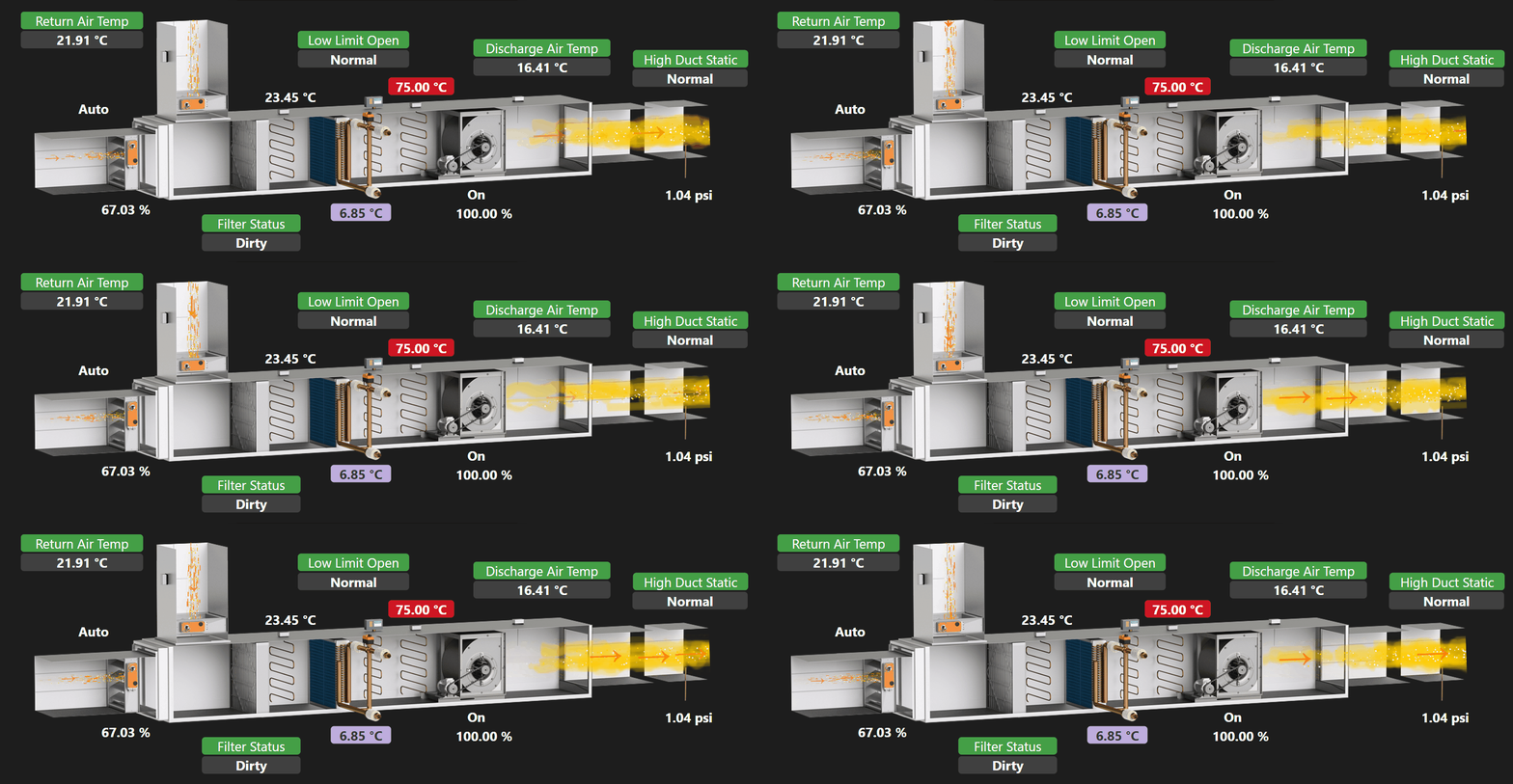
The widget supports three animation styles:
The widget also supports heating and cooling modes through point binding. The airflow colours change according to the equipment's heating or cooling state, providing an immediate visual indication of the operating mode. Velocity and speed update accordingly based on the numeric point value (0-100). Set your own colours for further customization.
The SVG animation is designed to scale and adapt to different screen sizes and widget dimensions, allowing the airflow to fill different equipment areas while maintaining a consistent visual appearance.
Are you looking for a cost effective way to manage and visualize data for all your customers? Why not have a look at View Builder?
Before you start. Download the modules from our portal. Update both license and certs. Copy the modules file to your modules directory. Restart BOTH station and Workbench.
1. Copy the airflowAnimations-ux.jar file to your modules directory.
2. Open the module from your palette file.
3. Drag and drop the widget from the palette onto your px view.
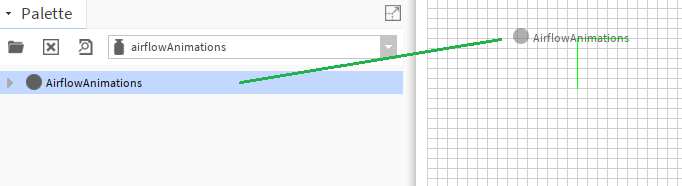
NOTE: its best to view this in browser to configure with Workbench open. Modify and save. Refresh browser page.
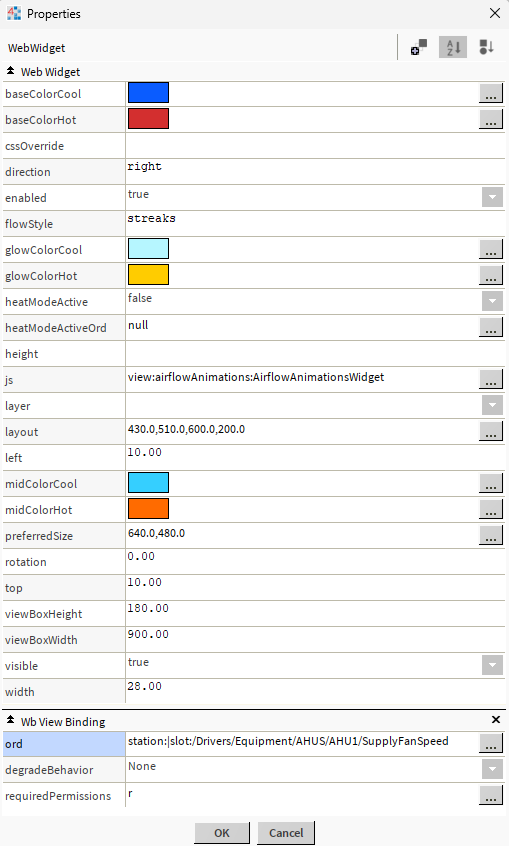
Ord: Set it to a numeric point with a min/max of 0/100. This will control the velocity of the air flow.
Flow Style: air, streaks, or ribbon.
Heat Mode Active: True/False. True will use hot colours, while false will use cool
Heat Mode Active Ord (Optional): True/False boolean ord. when true it will go into the heat mode showing hot colours.
Width: Width percentage of the widget container. Default is 28.
Top/Left: Move the animation vertically or horizontally.
Rotation: The angle of the animation. Can be negative
ViewBox Width/Height: The SVG viewBox is an attribute that defines the position, size, and internal coordinate system of an SVG canvas. Default is 900 and 180. A smaller value will make it appear bigger and more zoomed in.
Css Override: To change some of the styling on screen, set this property e.g. set background colour:

Build Your Own dashboards and win Projects by showing data that increase value and reduces expenditure.